
Equity curve · 90 days · from $1,500
See what OPTIMUS would have made you
Enter your account size and the risk you'd take, pick your instruments, then press simulate to see the past 12 months — month by month.
Hypothetical performance. This is a simulation that applies OPTIMUS's past signal history to the balance and risk you entered. One typical losing trade equals your chosen risk %, taken on your starting balance. Past results are not a promise or guarantee of future returns; real results vary with slippage, fees, broker and market conditions.
Hypothetical / simulated performance. Figures and the equity curve above are based on historical or sample data and do not represent actual trading results. Past performance is not indicative of future results.
The OPTIMUS Indicator.
One powerful indicator that reads the market for you and calls the moves — clear signals, no guesswork, no charts to stare at. Everything you need in a single tool.
OPTIMUS Indicator
Your all-in-one market tool
Built to spot high-probability setups automatically. It watches price action around the clock and tells you exactly when the market lines up — so you always know where the opportunity is, without reading a single chart.
Choose your setup.
Trade your own account or run a prop firm challenge — OPTIMUS works with both. Once you're in, the app walks you through connecting it, end to end.



Get instant access
Start your 15-day free trial in about a minute — full access to every tool right away. You're not charged until day 15, and you can cancel anytime before then.
Follow the setup guide
A step-by-step guide walks you from start to finish. Open a trading account, copy a few numbers into a box, and pick how much to risk per trade. We do the math — you just click.
Flip the switch
That's it. OPTIMUS watches the market and places trades for you — even while you sleep. No charts to read, no buttons to press. Check in from your phone anytime.
One plan. The Robot trades for you.
The bot places every trade on your broker, 24/7. Start with a 15-day free trial, then $99/mo. Cancel anytime.
- Auto-executes every trade on your broker
- Trades US30, NAS100, MNQ, gold, Bitcoin & forex (EUR/GBP, EUR/JPY, NZD/JPY)
- Every future tool we release — free, automatic
- Built-in safety: never risk more than you set
- Direct chat support — real humans, fast replies
Common questions
Do I need trading experience?
No. OPTIMUS is built for beginners. The setup guide walks you through everything, and once it's on, the tools trade for you automatically.
What does it cost?
One plan: the OPTIMUS Robot is $99/month, and it starts with a 15-day free trial — you're not charged until the trial ends. It auto-executes every trade for you on your broker. Cancel anytime before day 15 and you pay nothing.
What does the Robot trade?
US30, NAS100, MNQ, gold, Bitcoin and major forex pairs (EUR/GBP, EUR/JPY, NZD/JPY). The Robot places every trade automatically on your connected broker, with built-in risk limits so you never risk more than you set.
How do I pay?
Checkout is handled securely by Stripe. Your card details go straight to Stripe — we never see or store them.
Can I cancel?
Yes, anytime, in a couple of clicks. No lock-in and no cancellation fees.
Sizing mode
How the bot sizes each tradePer-instrument size
Applied to every alert for that marketWhere each market runs
The chart, data feed, and timeframe to load for every OPTIMUS pair — and which alert indicator drives it.
The flow
OPTIMUS indicator fires an alert
alert posts to your box URL
validates the alert secret
order placed on your account
Step by step
- You add the OPTIMUS indicator to a TradingView chart and set up an alert.
- The alert's webhook URL points straight at your own bot — nothing passes through anyone else.
- Your bot checks the alert secret, so only your signals are allowed to trade.
- A good signal goes to your broker as an order on your own account.
- OPTIMUS never sees your broker password — you connect your broker yourself.
What OPTIMUS is — and isn't
Tap the box that matches your account. It will walk you through everything, start to finish.


A VPS is just a Windows computer that lives in the cloud and never turns off. Your bot lives on it, so it keeps working even when your phone and laptop are off. Any cheap beginner Windows plan works fine.
Pick the cheapest Windows plan (about $5–15 a month). Choose a location close to your broker. After you pay, they email you the login details — it looks like this:
You don't download Windows — you just look at your VPS and control it from your phone or laptop, like a video call to a computer. To do that, install Microsoft's free app called Windows App (it used to be called "Remote Desktop"). It puts the VPS screen right on your phone.
Open the app, tap + Add PC, and copy in the details from your welcome email — put each one in the matching box:
- Tap +, then Add PC. Put in the PC name, username and password exactly as shown (tap Add User Account if it asks).
- Tap Save, then tap the tile you just made to connect.
- If a warning about a certificate pops up, tap Connect or Continue — that's normal for a new VPS, nothing is wrong.
- Use your finger to control it: drag to move the mouse, pinch to zoom. The bar at the top opens the keyboard or ends the session.
You're now looking at the VPS desktop. Open a web browser on the VPS (not your phone) and download MetaTrader 5. This is the program that holds your FTMO account and actually places the trades. Your download link, login, password and server are all in your FTMO Client Area → Account MetriX → Credentials.
In MT5, click File, then Login to Trade Account. Put in your Login (that's your account number) and your Master password (use the Master one, not the read-only/investor one). Then choose your server from the drop-down list — pick it, don't type it.
This is the on/off switch that lets the bot place trades. At the top of MT5, click the Algo Trading button (the green arrow). When it's on, you'll see a green Algo Trading light at the bottom of the screen.
Your remote-desktop app shows the VPS address as IP : port (two numbers with a colon between them). Your box address is only the part before the colon.
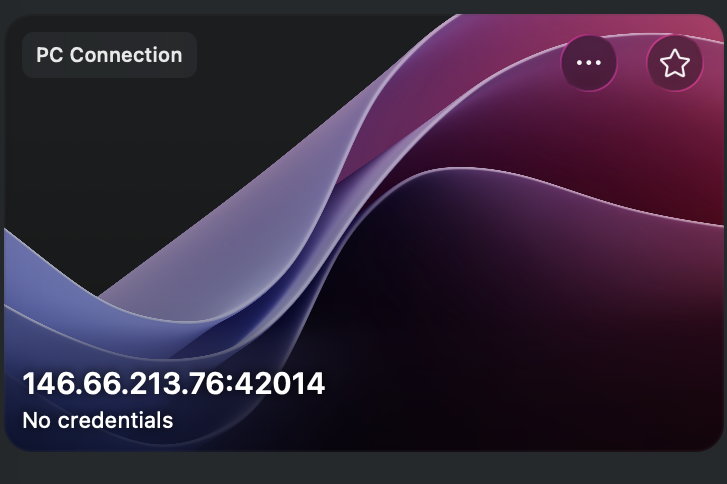
Go to My credentials → Your box address and type in only the number — no colon, no port, no http://. The app builds the full link for you:
Your alert secret is a password that goes in three places. This is the first. On the VPS, open the bot's setup page, paste the alert secret into the box, and hit save. This makes your bot only listen to your signals.
In TradingView, open the OPTIMUS indicator's settings (the little gear icon). Find the secret box and paste in the same alert secret you used in step 8. It has to match exactly.
In TradingView, create an alert on OPTIMUS. Open the Notifications tab, check the Webhook URL box, and paste your Webhook URL there. Then paste your alert secret into the Message box (this is the third and last place the secret goes).
- Fire off a signal (or set the alert to trigger once) and watch your broker to see the order show up.
- Look at the bot's log on the VPS — you should see it say the webhook came in and the order was sent.
- If nothing happens: double-check the box address, that port 80 is open, and that the exact same secret is in all three places.
Full setup walkthrough
Setup progress
—Your bot
Your OPTIMUS Robot
This is the engine that runs on your VPS and places the trades. Your download already has your Bot ID + secret built in — nothing to edit.
- On your VPS, make sure MetaTrader 5 is open and Algo Trading is ON.
- Unzip this folder on the VPS, then right-click
OPTIMUS-SETUP.bat→ Run as administrator. - It installs everything (Python, port 80, the robot) and starts it. Leave the black window open.
MetaTrader 5 (install on your VPS)
Install this on your VPS and log into your broker account before running the robot. Use the FTMO build below.
⬇ Download MetaTrader 5 (Windows)📱 Set it up from your phone
No computer needed — you can do everything from an iPhone or Android.
- Subscribe and create your account (right here).
- Get a Windows VPS — see Choose setup. They email you its address, username & password.
- Install the Remote Desktop app (Microsoft "Windows App") and connect to your VPS.
- Inside it: install MetaTrader 5 above and log into your account.
- Download your robot above and run OPTIMUS-SETUP (right-click → Run as administrator).
- Disconnect. It trades 24/7 on the VPS — reconnect from your phone anytime.
Webhook URL
Type in the address of the computer running your OPTIMUS bot. We'll build the full webhook link for you — then you just copy it into your TradingView alert.
What your bot is using
This is the sizing your bot reads from your account. It updates whenever you hit Save sizes in Trade sizes, and your bot picks it up within ~30 seconds.
Put it all together
- On your bot: open its setup page, paste the alert secret into the "Alert secret" box, and restart the bot.
- In TradingView: make an alert, turn on Notify on webhook URL, and paste the Webhook URL from above.
- Paste the same alert secret into the OPTIMUS indicator's secret box, so only your signals fire.
- Send a test signal and watch it show up at your broker.
Before you connect
Tradovate needs two things set up before a bot can trade your account. Do these in your Tradovate account first — it takes about 5 minutes.
- Go to Tradovate → Settings → API Access and turn on the API Access add-on ($25 a month; you need a funded Live account).
- Still on that page, make an API key. Tradovate gives you a key ID and a key secret — these are the two codes your bot needs.
- Give the key permission to place orders, then keep the ID and secret handy for the next step.
Enter your keys on your box
For safety, you type your keys on a page that lives on your own bot — not here. Put in your box address and we'll open that setup page for you.
What happens after you save
Daily performance
| Date | Trades | Win % | P&L |
|---|---|---|---|
| Aug 19 | 6 | 67% | +$420 |
| Aug 18 | 4 | 50% | -$110 |
| Aug 15 | 8 | 75% | +$610 |
| Aug 14 | 5 | 60% | +$180 |